






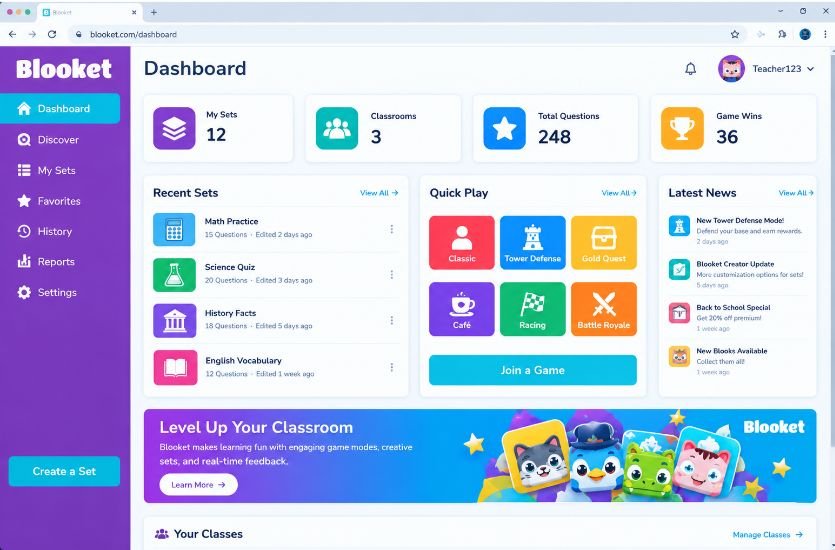
The Blooket Dashboard is the central area where users can manage different parts of their Blooket experience. Instead of treating classroom games, question sets, homework, reports, and account activities as separate tools, Blooket brings many of these functions together through its dashboard. For teachers, it can be used to prepare learning activities, host games, assign homework, review previous sessions, and examine student performance. Students can use their account features to participate in activities, track progress, and interact with Blooks and other elements of the platform.
Blooket combines educational questions with game-based experiences, making it possible for teachers to turn ordinary review activities into more interactive sessions. The dashboard becomes especially important after a game has finished because teachers can return to their history and examine information about participation, accuracy, questions, and student performance. Blooket’s official documentation says its redesigned History and Reports pages are intended to provide deeper insights into student performance and help teachers identify learning gaps.
Read Palworld Dedicated Server: Setup, Cost, Hosting & Performance Guide
Quick Overview of Blooket Dashboard
| Feature | Details |
|---|---|
| Platform | Blooket |
| Main Purpose | Managing educational games and learning activities |
| Main Users | Teachers and students |
| Teacher Functions | Create sets, host games, assign homework, view reports |
| Student Functions | Join activities, complete homework, track account progress |
| Reports | Game and homework performance reports |
| History | Previous hosted games and related information |
| Question Sets | Create, discover, organize, and use question collections |
| Analytics | Accuracy, answers, participation, and other performance information |
| Premium Features | Additional reporting and data tools through Blooket Plus |
What Is the Blooket Dashboard?
The Blooket Dashboard can be described as the central control area of a Blooket account. It connects several important functions that teachers and students may use while working with the platform. The exact tools visible to a user can depend on the account type and the features available to that account.
For teachers, the dashboard is particularly important because it provides access to activities related to question sets, games, homework, history, and reports. A teacher can prepare a question set, use it for a live activity, assign it as homework, and later return to the relevant results. This makes the dashboard more than simply a starting page because it connects preparation, classroom participation, and performance review.
For students, the experience is different. Students primarily interact with Blooket through games and assignments, while logged-in users can also access account-related progress and collectible features. Blooket’s current homework documentation explains that students can complete homework without an account, although logging in can allow them to earn XP and tokens, track progress, and use the Market.
Blooket Dashboard for Teachers
The teacher side of the Blooket Dashboard is designed around classroom management and educational activities. Teachers can prepare question sets and then use those sets in different Blooket experiences.
One important part of the teacher experience is the ability to host games. Blooket’s educator resources include tools for hosting live games, assigning homework, viewing homework results, accessing reports, and reviewing opportunities for further study.
This workflow can be useful because a teacher does not necessarily need to create a completely new activity every time. Existing question sets can be used for different sessions, while the resulting reports can help teachers understand how students performed.
The dashboard can therefore serve as a workspace before, during, and after a classroom activity. Before a game, the teacher can prepare content. During the activity, students answer questions through the selected game experience. Afterward, the teacher can return to the dashboard and examine the results.
Blooket Dashboard for Students
The student experience focuses more on participation, assignments, practice, progress, and collectibles. Students may enter a live game using the information provided by their teacher or complete a homework activity independently.
Blooket’s updated homework system allows teachers to share assignments through a QR code or link. Students can then reach the homework details screen, which can show information such as the homework title, teacher name, due date, and correct-answer goal.
Students do not always need to log in to complete homework. However, logging in can provide additional account-based functionality. According to Blooket’s official documentation, logged-in students can earn XP and tokens, track progress, and spend tokens in the Market.
This distinction between participating in an activity and using a personal account is important for anyone learning how the Blooket Dashboard works.
How Blooket Dashboard Connects Question Sets and Games
Question sets are an important foundation of the Blooket experience. A question set provides the educational content that students encounter during a game or assignment.
Teachers can prepare question sets around many subjects, including mathematics, science, vocabulary, history, language, and general knowledge. Once the questions are ready, they can be used in appropriate Blooket activities.
The dashboard makes this workflow easier to manage because teachers can move between content preparation and game-related functions without treating each activity as an entirely separate system.
The educational value of this approach depends heavily on the quality of the questions. A visually engaging game cannot replace accurate, well-designed learning content. Teachers can therefore use the dashboard not only to start games but also to review results and determine whether the questions actually helped students understand the material.
Hosting a Game Through Blooket
One of the most recognizable uses of Blooket is live classroom gaming. A teacher selects an appropriate question set and game mode before starting the activity. Students then participate using the method provided by the teacher.
The game-based format changes the atmosphere of ordinary question-and-answer review. Instead of simply answering questions on a traditional worksheet, students interact with a game environment while responding to educational content.
The dashboard remains important after the game because the activity does not necessarily end when the final question is answered. Teachers can access reports and historical information to examine what happened during the session.
Blooket’s official documentation states that a game report can be viewed immediately after play and that previous games can be accessed through the History area of the dashboard.
Blooket Dashboard History
The History section is one of the most useful areas for teachers who want to look back at previous activities. Instead of losing information when a game ends, teachers can return to their game history and examine earlier sessions.
According to Blooket’s official documentation, the History page displays information such as the game mode, question-set title, number of players, and date played. Teachers can also filter their history by date range and sort game histories by date.
The ability to review older activities can be useful when planning future lessons. A teacher might notice that students struggled with a particular group of questions or that participation changed across different sessions.
Blooket also provides an option to delete reports in bulk, which can help users keep their dashboard organized when a large number of previous activities have accumulated.
Blooket Reports and Student Performance
Reports are among the most important functions connected with the Blooket Dashboard because they turn game activity into information that teachers can review.
A Blooket game report can include a summary of the game, the question set used, class accuracy, the date and time of the activity, correct answers, incorrect answers, total participants, and total questions answered.
The report also provides information about individual participants. The leaderboard can display placement, scores, accuracy, and correct and incorrect answers, with additional statistics depending on the game mode.
This information can help teachers move beyond simply asking whether students enjoyed a game. The more important question is whether the activity revealed anything useful about student understanding.
For example, if a large percentage of students answer a particular question incorrectly, the teacher may decide that the topic requires additional explanation. In this way, the dashboard can become part of the teaching process rather than simply a place for game statistics.
Question-Level Information in Blooket Reports
Blooket’s reporting system can provide more detailed question-level information, particularly for Blooket Plus users.
The official documentation explains that Plus reports can include a Question Breakdown section. Teachers can sort questions by question number or incorrect percentage and select individual questions to examine additional information. For some question types, the report can also show submitted responses.
This can be particularly useful when a teacher wants to identify learning gaps.
Imagine that a class performs well on most questions but struggles with three specific questions. Looking only at the overall score might hide that pattern. A question-level report can make the problem easier to recognize.
Teachers can then review the relevant concept and potentially create another question set containing material that addresses the areas students found difficult. Blooket’s official guidance specifically describes using report information to identify opportunities for further review.
Blooket Homework Dashboard
Blooket also allows teachers to assign homework rather than requiring every activity to happen as a live classroom game.
Homework can provide a more flexible experience because students can complete an assigned activity independently. The teacher can establish the assignment and students can access it using the provided link or QR code.
After students participate, teachers can return to the Homework area to view the results. Blooket’s official documentation states that homework reports can display student names, accuracy, question breakdowns, time played, and completion details.
The teacher can also view a list of questions and sort them by question number or incorrect percentage. This provides another way to identify questions that may need additional attention.
Understanding Blooket Homework Results
Homework results can be useful because they show more than whether an assignment was completed.
A teacher can examine how accurately students answered questions and how much time they spent playing. This can help provide context when reviewing performance.
Blooket Plus users receive additional reporting options. The official documentation says Plus users can select questions from the overview to see more details, access additional student information, and download reports.
The reporting system can therefore be used as a feedback mechanism. Instead of assigning an activity and forgetting about it, teachers can examine the results and use the information to decide what should happen next.
Downloading Blooket Reports
For users with Blooket Plus, reports can also be downloaded as spreadsheet files. This can be useful when teachers want to analyze information outside the normal dashboard interface.
Blooket explains that downloaded reports can contain an Overview tab and a Participant Summary tab. The Overview can include information such as question number, question text, media, question type, accuracy, average answering time, correct answers, incorrect answers, unattempted questions, and student performance.
The Participant Summary provides an overview of performance broken down by student. Individual student reports can also contain information about attempts and specific responses.
For educators who maintain their own records, this type of downloadable information can make Blooket’s reporting system more practical.
Blooket Plus and Dashboard Features
Some of the more detailed dashboard and reporting capabilities are associated with Blooket Plus.
One important distinction is reporting depth. Basic users can access core game and homework information, while Plus users can receive additional analytical details and spreadsheet downloads.
Blooket’s official documentation identifies downloadable game and homework reports as a Plus feature. The available data can include detailed question information, student performance, and individual attempts.
This means that users should not assume every account will display exactly the same reporting options. The available features can depend on the account and subscription level.
Group Plan Reports Dashboard
Blooket also provides a separate reporting environment for Group Plan administrators. This is different from the standard teacher dashboard and is intended to provide information about activity across a group.
According to Blooket’s official documentation, the Group Plan Reports Dashboard can show total questions answered, student participants, and games hosted. Administrators can filter the information by date and by game type, including live games and homework.
The dashboard can also display information about individual teachers within the group, including their games hosted, participants, and questions answered. This makes the Group Plan reporting system more relevant to administrators who need an overview across multiple educators rather than only one classroom.
Blooket Dashboard and the Market
The Blooket experience also includes collectible elements known as Blooks. For students who use their accounts, tokens can be connected with the Market and collectible features.
The Market adds a game-like reward system to the educational platform. This can make the overall experience more engaging for students who enjoy collecting and customizing digital items.
However, the educational purpose of Blooket remains centered on questions and learning activities. The collectible system is an additional engagement feature rather than a replacement for educational content.
Why the Blooket Dashboard Is Useful for Teachers
The main value of the Blooket Dashboard is organization. A teacher can use one account environment to manage several stages of an activity.
Before a lesson, the teacher can prepare or select questions. During the lesson, those questions can be used in a game. Afterward, the teacher can examine the results. Later, the teacher can use the information from those results to plan review activities.
This creates a simple cycle of preparation, participation, measurement, and review.
The dashboard can also save teachers from relying entirely on memory or general impressions. A game may feel successful because students were highly engaged, but performance data can reveal whether they actually understood the questions.
Tips for Using Blooket Dashboard Effectively
Teachers can get more value from the dashboard by reviewing reports instead of stopping immediately after a game. The most useful information may appear after students have finished playing.
It is also helpful to pay attention to patterns rather than focusing only on the highest score. A high individual score does not necessarily mean the entire class understood the material. Looking at class accuracy, incorrect answers, and question-level results can provide a broader picture.
Teachers should also make sure their question sets are accurate and appropriate for the students’ level. A report can only be as useful as the questions being measured.
Another useful practice is to revisit difficult questions during later lessons. If several students struggle with the same concept, the teacher can explain it again and use another activity for reinforcement.
Common Blooket Dashboard Questions
Is the Blooket Dashboard for Teachers or Students?
The dashboard experience can serve both teachers and students, but the available functions differ according to the user’s account and role. Teachers generally have tools related to creating, hosting, assigning, and analyzing activities, while students primarily use Blooket for participation, homework, progress, and account features.
Can Teachers See Previous Blooket Games?
Yes. Blooket’s official documentation explains that teachers can access previous games through the History section of the dashboard. History can be filtered by date and sorted by date.
Can Teachers See Student Performance?
Yes. Blooket reports can provide information about student accuracy, correct and incorrect answers, participation, and other statistics. More detailed information is available through certain Plus reporting features.
Can Blooket Reports Be Downloaded?
Yes, but spreadsheet downloading is documented as a Blooket Plus feature. Downloaded reports can contain detailed question and participant information.
Can Students Complete Blooket Homework Without an Account?
Yes. Blooket’s official homework documentation says an account is not required to complete homework. However, logging in can provide additional benefits such as earning XP and tokens and tracking progress.
Final Thoughts on Blooket Dashboard
The Blooket Dashboard is much more than a page for starting educational games. It connects several parts of the Blooket experience, particularly for teachers who need to create activities, host games, assign homework, review previous sessions, and understand student performance.
Its reporting functions are especially important because they can turn game results into useful educational information. Teachers can examine accuracy, participation, questions, and student-level performance to identify areas that may require further review. Blooket’s redesigned History and Reports system is specifically intended to make these insights easier to access and use.
For students, the dashboard and connected account features provide access to assignments, progress, and elements such as tokens and Blooks. Together, these features make Blooket a combination of educational content and game-based participation.
Understanding how the dashboard works can therefore help both teachers and students use the platform more effectively. Instead of viewing Blooket only as a quiz game, users can see it as a broader learning environment where preparation, gameplay, homework, feedback, and performance information are connected.
Visit Expand Magazine for more educational and informational blogs.